You have a folder of PDFs - bank statements, vendor invoices, lease agreements, monthly reports from a property platform, a stack of receipts somebody emailed in from the field. You need the numbers in a spreadsheet. Right now somebody on your team is retyping them, or you are, and it's eating an afternoon a week.
Most articles on this jump straight to "use this AI tool" or "use this online converter". Both can be the right answer. Both can also leak client data, charge per page, or break on the next PDF that looks slightly different. Below are the four options I'd try in order for a small B2B firm, and where each one breaks.
Pick the option that matches your PDFs
Three things about your PDFs decide which tool fits. Check them before you pick anything.
- Is the PDF text-based or scanned? Open it and try to select the numbers with your cursor. If you can highlight them as text, the file is text-based. If your cursor draws a box and selects nothing, it's a scanned image and you need OCR (optical character recognition - software that reads pixels and turns them into text).
- Is the layout the same every time? Same vendor, same template, same columns, or 50 different vendors with 50 different invoice layouts?
- Does the PDF contain client data covered by an NDA, financial data, or anything regulated?
A bank statement from the same bank every month is text-based, identical layout, sensitive. A pile of receipts from the field is mixed, every vendor different, low sensitivity. A signed lease addendum is text-based, regulated. Each one wants a different setup.
Option 1: Excel's built-in PDF connector (Power Query)
If your PDFs are text-based and the layout is consistent, start here. Microsoft 365 Excel has a built-in PDF connector that imports tables directly into a sheet: Data > Get Data > From File > From PDF. Excel finds the tables, you pick the ones you want, and it loads them as a refreshable query.
This is the right answer more often than people expect. It's free if you already pay for Microsoft 365. The data never leaves your machine, which matters if the PDF is covered by an NDA. And once you set up the query for one bank statement, the next month you drop in the new file and click refresh - no retyping.
Where it breaks: scanned PDFs (Power Query won't OCR for you), and PDFs where the "table" is free-text with numbers laid out to look like a table. Vendor invoices are the usual failure case. They look structured to your eye, but the underlying PDF has no real table, and Power Query brings back a soup of text fragments you have to clean up by hand.
Google Sheets has no native equivalent. Sheets' import functions like IMPORTHTML only pull data from HTML pages, not PDFs. If you're a Sheets shop, you'll skip to option 2 or 3.
Option 2: AI for messy, mixed-layout PDFs
When the layout varies (50 vendors, 50 invoice templates) or the file is a scanned image, AI is the right tool. You can drop a PDF or an image into Claude or ChatGPT and get back a clean table: vendor, date, line items, total, category. For a small batch this works inside the chat window. For an ongoing pile, you wire it up through the API and have a script append rows to your sheet.
This is genuinely magic the first few times. It also gets categories wrong sometimes, especially on hardware-store-style receipts where the same vendor sells supplies that belong on three different project budgets. One property management owner I spoke with put it well - if he miscalculates an expense, the company either loses money or overcharges the client, so the workflow has to be meticulous. He's right. Being meticulous takes more than a good prompt; build a review step in from day one. The review step flags low-confidence rows, totals that don't match the line items, and category guesses that sit on the boundary between two budgets.
Before you paste a client PDF into a chat, check which tool you're using and on which plan. The free and personal ChatGPT plans train on your inputs by default; business and enterprise plans don't. The plan you're on changes whether you should paste sensitive data at all. I wrote a full breakdown of which plan does what for client work in the ChatGPT confidentiality guide, and on picking the right ChatGPT plan for a small B2B firm.
This is where I see the most teams stuck. They've already tried a "custom GPT" or a ChatGPT prompt that worked on 5 PDFs and broke on 50. Ove André Remme, who runs Terapivakten in Norway, hired another freelancer before me who built him exactly that - a custom GPT for content generation - and it didn't hold up at scale. Two weeks later we rebuilt it as a working application. The same failure mode shows up with PDF extraction: the demo on 5 files convinces somebody, and the real folder of 500 files exposes every edge case nobody thought about.
Option 3: A small custom pipeline
Once you're processing the same kind of PDF every week and the volume is high enough that a person reviewing the AI's output is a real job, it's worth building a small pipeline. The pipeline looks the same in every firm I've built one for:
- A folder, an email inbox, or a webhook where PDFs land.
- Text extraction (text-based PDFs go through Power Query or a library; scanned ones go through OCR first).
- An AI step that pulls structured fields - vendor, date, amount, line items, category guess, confidence score.
- A validation step that catches the things AI gets wrong: totals that don't add up, dates outside the period, unknown vendors.
- A review queue in a sheet, Notion, or your existing tool, where a human approves anything that didn't pass validation.
- An append to the system of record - your accounting tool, your project sheet, your CRM.
I built one of these for a recruitment AI startup client and the first version was quality-oriented: frontier models, sometimes reasoning models, for every step. It worked at the demo scale of two or three users. When the client rolled out to dozens of recruiters and the pipeline started processing hundreds of new inputs a day, speed degraded and cost ran. I redesigned it to use smaller, non-reasoning models for the routine extraction steps and kept the bigger models only where judgment was needed. Speed and cost problems went away with only a slight quality drop. The same trade-off shows up on PDF pipelines - don't reach for the most expensive model for every page.
Confidentiality gets serious at this layer. If the pipeline is reading vendor invoices that contain client names, the API you call matters. The OpenAI and Claude APIs don't train on your inputs by default; the consumer ChatGPT plans do unless you change a setting. If the PDFs are regulated (medical, legal, financial), an enterprise plan with a signed Data Processing Agreement and a zero-retention setup is worth the extra cost. The team at Sellify AI, where I spent two years as an AI engineer reporting into the technical co-founder Ivan Nikolaichuk while Thomas K. Lundberg led the company as CEO, handled this exact problem at scale for pest control clients in the PCT top 100, where customer data and compliance were always part of the first conversation.
Option 4: A pre-built SaaS converter
There are dozens of "PDF to Excel" SaaS products. They're fine for a one-off conversion of a non-sensitive document. They're rarely the right answer for an ongoing workflow in a small firm, for two reasons.
The first is data. You're uploading client documents to a third party whose privacy posture you haven't read. For an NDA-covered file, that's a problem.
The second is fit. A SaaS converter does one thing: turn PDF into spreadsheet. It doesn't validate, doesn't categorize against your chart of accounts, doesn't write into your existing system of record. So the team still spends time cleaning up the output and pasting it where it needs to go. The savings shrink fast.
If your need is genuinely one-off ("I have this one stack of statements, I need it in Excel by Friday, then I'll never do it again"), a SaaS converter is fine. If you'll be doing this every week, skip it and pick option 1, 2, or 3.
A decision rule
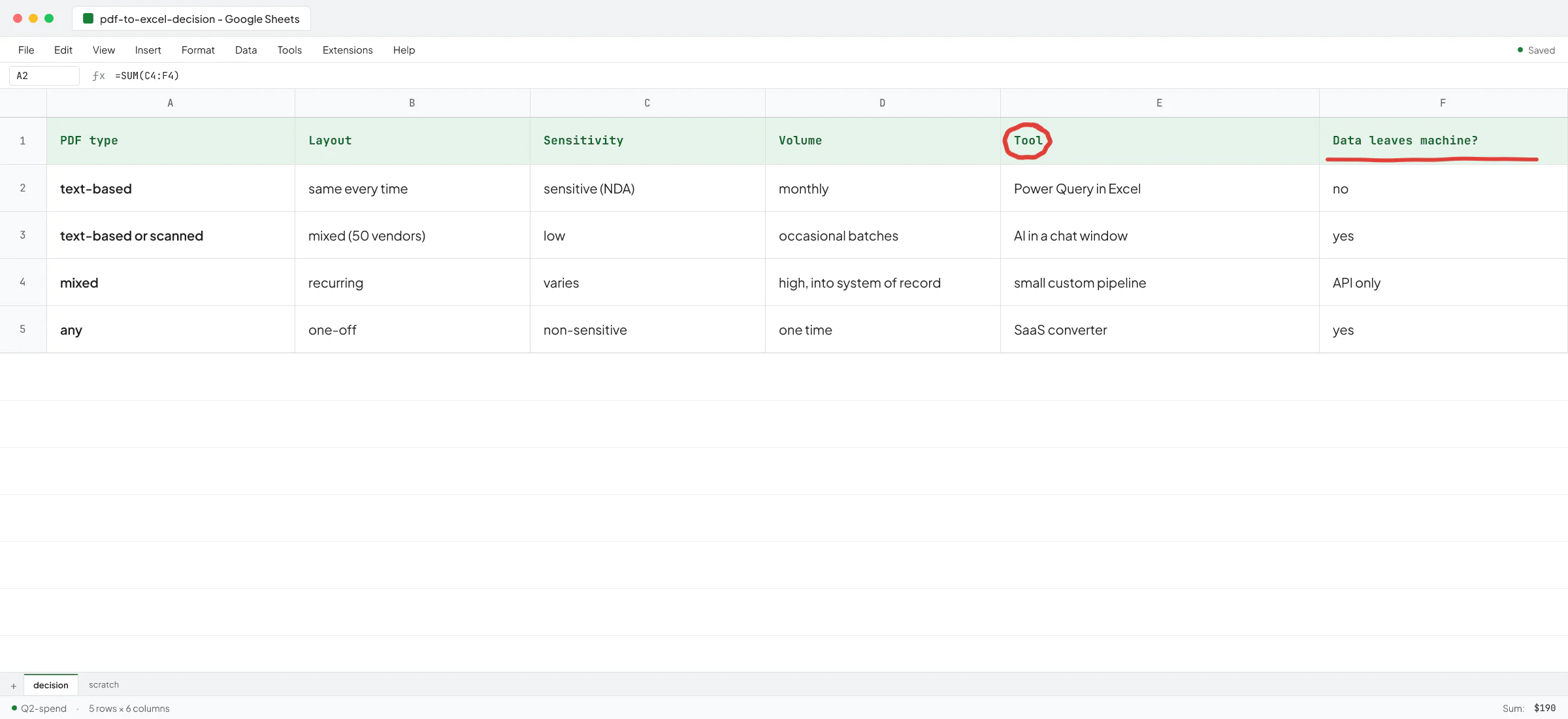
- Text-based PDFs, same layout every time, sensitive data: Power Query in Excel.
- Mixed layouts, occasional batches, low sensitivity: AI in a chat window with a review pass.
- High volume, recurring, into a system of record: a small custom pipeline with validation and a review queue.
- One-time job, non-sensitive: a SaaS converter.
Most small B2B firms I work with end up running two of these at once - Power Query for the predictable monthly statements, and a small AI-backed pipeline for the messy stuff. The mistake is reaching for option 3 when option 1 would have done the job, or reaching for option 4 when the data shouldn't be leaving your laptop. Before any of this, see if your existing stack already does it. That's the toolsmaxxing move, and Excel's PDF connector is a classic example.
When you get past Excel's connector and need a real pipeline, that's the moment a short conversation usually saves a few weeks of back-and-forth. Ivan Nikolaichuk, the technical co-founder of Sellify AI, put it like this after we worked together: "Vlad knows his craft well and was able to handle complex engineering tasks independently. He is quick to learn new things and adapts fast when requirements change." Source on his LinkedIn recommendation page. If you have a folder of PDFs and a deadline, book a call and we'll figure out which of the four options fits.
FAQ
What is the easiest way to extract data from a PDF to Excel?
If your PDF is text-based and has tables, the easiest way is Excel's built-in PDF connector: Data > Get Data > From File > From PDF. It's free with Microsoft 365 and the data stays on your machine. For scanned PDFs or messy layouts, paste the file into Claude or ChatGPT and ask for a clean table.
Can ChatGPT extract data from a PDF to Excel?
Yes. You can upload a PDF in ChatGPT and ask for a table back as CSV, then paste it into Excel. It works well for messy or mixed-layout PDFs where Excel's connector struggles. Check which ChatGPT plan you're on before uploading client data - the free and personal plans train on your inputs by default, and the Business and Enterprise plans don't.
How do I extract data from a scanned PDF to Excel?
Scanned PDFs are images, so you need OCR first. Excel's PDF connector won't do this. The fastest options are dropping the file into Claude or ChatGPT (both run OCR under the hood), or running it through a SaaS converter for a one-off. For an ongoing volume of scanned documents, a small custom pipeline with a dedicated OCR step is more reliable than either.
Is it safe to extract data from a client PDF using AI?
It depends on the tool and the plan. The OpenAI API and Claude API don't train on your inputs by default. The consumer ChatGPT Free and Plus plans do train on your inputs unless you turn the setting off. For NDA-covered or regulated documents, use a business or enterprise plan with a signed DPA, or keep the work inside Excel's PDF connector where the file never leaves your machine.
Can I automate extracting PDFs into a spreadsheet without code?
Up to a point. Excel's PDF connector handles repeating layouts with one click after the initial setup. Make and n8n both have nodes that read PDFs and call an AI model, which gets you a no-code pipeline for messy files. For a comparison of which of those two fits a small firm, see n8n vs Make. Past a certain volume or complexity, a small custom script ends up cheaper and more reliable than a long Make scenario.